Setting up your social media accounts
Before moving on, there are some social media platform restrictions you need to be aware of. These are explained as we move through each platform below.
Once your platform accounts meet the requirements below, follow the Quick Start Guide to connect them to Chirpy.
Instagram offers three account types: Personal, Creator, and Business. Personal accounts are for casual users and offer privacy, while Professional accounts (Creator and Business) are public and provide advanced analytics, monetization tools, and contact buttons.
Platform Restrictions
To connect your Instagram account to Chirpy it must be a Professional account. There are two types:
1. Creator Accounts — tailored specifically for influencers, public figures, artists, and content producers.
- Who it's for: People building a personal brand.
- Key features: Access to Instagram's full commercial music library for Reels, advanced growth insights, streamlined inbox controls, and monetization tools like badges and subscriptions.
- Best for: Individuals wanting performance metrics without the corporate or retail features.
2. Business Accounts — designed for traditional brick-and-mortar stores, e-commerce brands, and service providers.
- Who it's for: Brands and organizations focused on sales, ads, and customer service.
- Key features: Action buttons (e.g. "Reserve," "Book Now"), lead generation forms, and seamless integration with third-party publishing and analytics tools.
As you'll be using Instagram for business with Chirpy, ensure your account is designated as a Business Account.
Switching to a Business Account
To switch your account type on instagram.com:
- 1Click on your Profile Picture.
- 2Select Edit profile.
- 3Scroll down in the Settings bar on the left until you see For professionals.
- 4Select Account type and tools.
- 5Select Switch to professional account.
- 6Select Business and then follow the prompts.
While most social media platforms allow posting to personal accounts/profiles, Facebook does not.
Platform Restrictions
Facebook's platform policies are intentionally designed to protect the privacy and security of individual users. As a result, Meta (Facebook's parent company) does not permit third-party applications to directly manage, publish to, or access personal Facebook profiles in the same way they can manage Facebook Pages.
This is not a limitation imposed by Chirpy or other social media management platforms such as Buffer, Hootsuite and Sprout Social. It is a platform-wide restriction established and enforced by Meta.
For a full explanation, see Why Facebook personal profiles cannot be connected in the appendix.
Creating a Facebook Page
The preferred method used by all social media management platforms is the use of Facebook Pages.
See How to Create & Set Up a Facebook Page for Your Business to set up your account.
There are no restrictions on connecting Personal or Business LinkedIn accounts to Chirpy — you can post content to both, and many people do just that.
If you don't currently have a Business account, you can link to your Personal account to start. However, if you want to make your business discoverable, build credibility, and engage with prospects, it is recommended that you create a Business account and post there.
Here are instructions on creating a Business LinkedIn account.
X (Twitter)
There are no restrictions on connecting Personal or Business X accounts to Chirpy — you can post content to both.
If you don't currently have a Business account, you can link to your Personal account to start. However, if you want to make your business discoverable, build credibility, and engage with prospects, it is recommended that you create a Business account and post there.
See Setting up a Business (Professional) account on X, and consult the FAQs for requirements and instructions.
There are no restrictions on connecting Personal or Business Pinterest accounts to Chirpy — you can post content to both.
If you don't currently have a Business account, you can link to your Personal account to start. However, if you want to make your business discoverable, build credibility, and engage with prospects, it is recommended that you create a Business account and post there.
TikTok
There are no restrictions on connecting Personal or Business TikTok accounts to Chirpy — you can post content to both.
See TikTok account types for more information.
YouTube
YouTube is a video-first platform, so Chirpy publishes videos and Shorts to your channel rather than text or image posts. To connect YouTube, you'll need a Google account with a YouTube channel — the channel is what your videos are published to.
You can connect either a personal channel or a Brand Account channel. A Brand Account keeps the channel separate from your personal Google identity and lets more than one person help manage it, which is why it's recommended for businesses and teams.
Before connecting, make sure your channel meets the following requirements:
- A Google account — this is the account you'll sign in with when connecting YouTube to Chirpy.
- A YouTube channel created on that account. If you've never created one, you'll be prompted to do so the first time you visit YouTube while signed in.
- A verified channel — verifying your channel by phone unlocks uploads longer than 15 minutes, custom thumbnails and other publishing features. Verifying before you connect avoids surprises when scheduling longer videos.
If you don't yet have a channel, see Create a YouTube channel. To set one up under a Brand Account, see Use a channel with a Brand Account. To verify your channel, see Verify your YouTube account.
Grant all permissions when prompted
When you connect YouTube, Google will ask you to approve the permissions Chirpy needs to upload and manage videos on your behalf. Be sure to allow all of them — if any are skipped, publishing may fail and you'll need to reconnect the account.
Appendix
Why Facebook Personal Profiles Cannot Be Connected Directly
Overview
Facebook's platform policies are intentionally designed to protect the privacy and security of individual users. As a result, Meta (Facebook's parent company) does not permit third-party applications to directly manage, publish to, or access personal Facebook profiles in the same way they can manage Facebook Pages.
This is not a limitation imposed by Chirpy or other social media management platforms. It is a platform-wide restriction established and enforced by Meta.
The Core Reason
Following several high-profile privacy incidents, including the Cambridge Analytica scandal, Meta significantly tightened access to personal user data and personal profile functionality through its APIs.
Today, Meta's APIs are designed around the principle that:
- Personal Facebook profiles belong to individual users.
- Personal profile content and interactions are considered private.
- Third-party applications should not have broad access to personal profile activities.
- Business-related publishing should occur through Facebook Pages, which are specifically designed for commercial, organizational, and public-facing use.
Because of this, Meta does not provide API permissions that allow software platforms such as Chirpy to connect to a user's personal timeline for publishing, schedule posts to a personal profile, read or manage content from a personal profile, or tag arbitrary personal profiles.
What Is Allowed
Meta does allow third-party applications to connect to and manage Facebook Pages. Business Pages can be connected to applications such as Chirpy. Through approved API permissions, Chirpy can:
- Publish posts.
- Schedule content.
- Retrieve analytics and engagement data.
- Manage comments and interactions.
- Tag other Facebook Pages where supported by Meta.
What Is Not Allowed
The following actions are generally prohibited by Meta's API policies:
- Publishing directly to a personal Facebook profile.
- Scheduling content to a personal Facebook timeline.
- Retrieving analytics for personal profiles.
- Tagging arbitrary personal Facebook users through third-party software.
- Accessing a user's friends list.
- Accessing private profile data beyond the limited information explicitly granted during authentication.
Available Options
Option 1: Use a Facebook Page (recommended). The industry-standard solution is to publish through a Facebook Page. This is the method used by virtually all major social media management platforms, including Hootsuite, Buffer, Sprout Social, Vista Social and Later.
Option 2: Manual sharing. You may create content within Chirpy and then manually copy or share that content to your personal Facebook profile using Facebook's native interface. In this scenario:
- Chirpy assists with content creation.
- You remain in direct control of posting to your personal profile.
- No Meta policies are violated.
Facebook's restrictions on personal profile access are deliberate privacy and security measures imposed by Meta. For businesses, brands, professionals, real estate agents, restaurants, and organizations, the approved and recommended approach is to use Facebook Pages, which provide full support for publishing, scheduling, analytics, and other social media management features through Meta's official APIs.
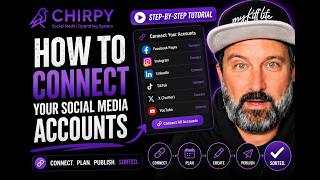
Prefer to watch?
See the video walkthrough
Watch a quick video companion to this guide on YouTube.
 Still need help? Contact our support team.