
LinkedIn guide
How to make a LinkedIn carousel
A LinkedIn carousel is a PDF posted as a document. LinkedIn shows it one page at a time, and people swipe or click through it. To make one, plan 3 to 6 slides around one idea, design them in one style and one size, save them as a single PDF, and post the PDF as a document with a caption. Here is each step, with how to do it in Chirpy.
7 days free. No card needed.
What makes a carousel worth swiping
- The first slide says what the reader gets by the end.
- One idea per slide, in a few short lines that read easily on a phone.
- Every slide the same size, colours and fonts, so it reads as one piece.
- The last slide says what to do next: comment, visit a page or get in touch.
Step 1: Choose your Brand Kit and a size
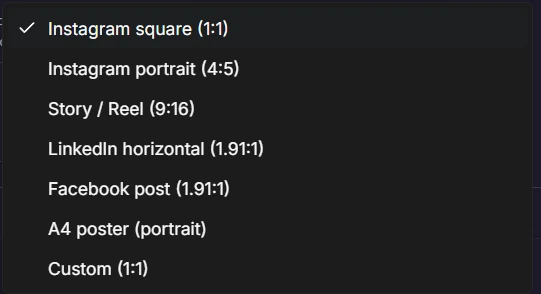
In Chirpy's AI Image Studio, switch to Carousel mode and pick your Brand Kit, so the slides use your colours, logo and voice. Then pick one size for every slide. Square (1:1) and portrait (4:5) are common choices for a LinkedIn carousel.
Step 2: Describe the carousel and choose the slide count
Describe the subject and the message, not the visuals, and choose how many slides you want. Carousel mode makes 3 to 6 slides.
Step 3: Generate, then check every slide
Chirpy writes a heading and body text for each slide and designs all of them in one design system, matched to the cover. Read each slide, then edit or regenerate any that miss, and download the slides.
Step 4: Combine the slides into one PDF
Chirpy doesn't export the slides as a PDF yet, so combine the downloaded slides into one PDF with any PDF tool. Keep them in order and name the files 1, 2, 3 so they stay that way.
- On a Mac: open all the slides in Preview, choose File, then Print, and save as PDF.
- On Windows: select the slides, right-click, choose Print and pick Microsoft Print to PDF.
Step 5: Post it to LinkedIn from Chirpy
Open Create Post and choose your LinkedIn profile or company page.
Attach the PDF in the LinkedIn document field. One PDF per post; any other platforms in the same post get the text only.
Name the file well. Chirpy uses the file name as the document title on LinkedIn, so name it the way you want it to read.
Write the caption, then publish now or schedule it for later.
Common mistakes
- Slides in different sizes, so some pages show bars or get cropped.
- Too much text on a slide; if it needs a paragraph, it needs another slide.
- A first slide that doesn't say why anyone should keep going.
- Posting the slides as separate images when you wanted a swipe-through carousel.
Questions
Can I post a LinkedIn carousel as images instead of a PDF?
You can post several images in one LinkedIn post, and Chirpy supports up to 20. LinkedIn shows them as a set of photos rather than a document you page through, so for a swipe-through carousel use a PDF.
How many slides should a LinkedIn carousel have?
As many as the idea needs and no more. Chirpy's Carousel mode makes 3 to 6 slides, which covers most single ideas with a cover and a closing slide.
Can I schedule a LinkedIn carousel?
Yes. In Create Post, attach the PDF in the LinkedIn document field, write the caption and schedule it for any time, or publish it straight away.
Make your first carousel
AI Image Studio and carousels are on every Chirpy plan. 7 days free, no credit card.
Start free trial7 days free. No card needed.